Calendar
The Calendar application allows you to organize appointments, meetings, and scheduled resources in one place. The main calendar screen provides quick access to calendar selection, booking options, navigation controls, and multiple calendar views.
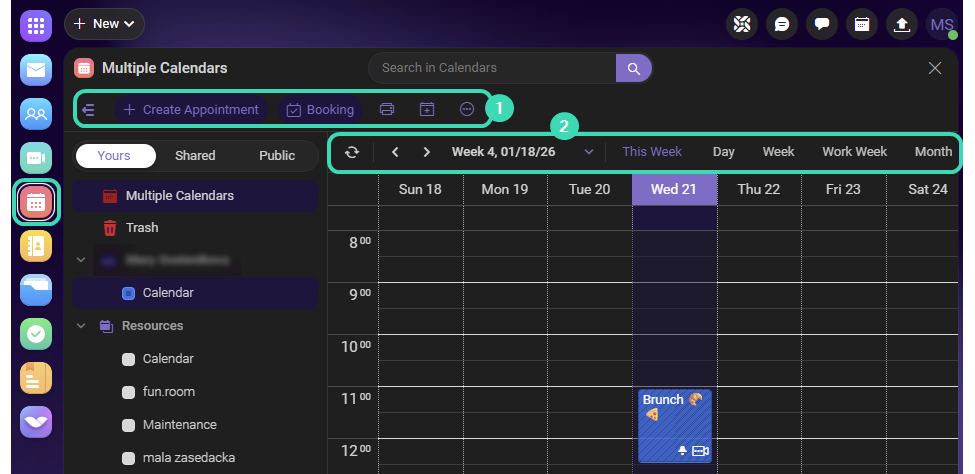
Menu bar 
The menu bar contains the primary controls for working with the calendar. From here, you can create appointments, open booking options, manage calendars, and access additional actions.
| Action | Description |
|---|---|
| Collapse menu | Shows or hides the left navigation panel to provide more space for the calendar view. |
| Create appointment | Opens a dialog to create a new calendar appointment or meeting. |
| Open Booking | Opens the Appointment Booking section, where you can create and manage booking pages for scheduling meetings. |
Print  |
Opens the print options. You can print the calendar either as a calendar grid view or as a list of scheduled events. |
Add calendar  |
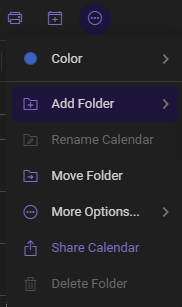
Opens the Create New Folder dialog, where you can create a new calendar. Enter the calendar name and select its location (for example, under your personal account or Resources). The folder is created with the default type Calendar. |
More  |
Opens a menu with additional actions for the selected calendar item, such as editing, duplicating, tagging, or moving it to another folder. |
Navigation controls 
Date navigation and view controls allow you to move between time periods, view the selected date range, and quickly return to the current week.
Use the navigation arrows to browse through weeks or months, and select Day, Week, Work week, or Month to change the calendar view.
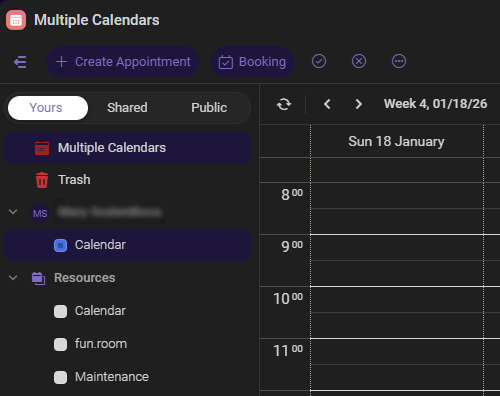
Tree view
Tree view shows all available calendars in a structured hierarchy, including your own calendars, shared calendars, and resource calendars (such as meeting rooms). You can use this view to select which calendars are displayed in the main calendar area.
Meeting options
Meeting options provide quick actions for managing a selected meeting, such as responding to invitations, editing details, or organizing the event.
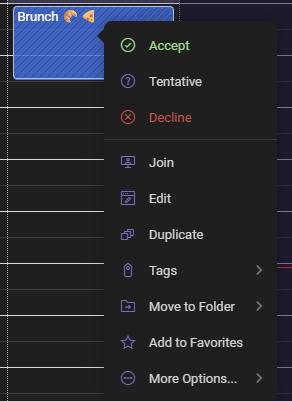
| Action | Description |
|---|---|
| Accept | Accepts the meeting invitation. |
| Tentative | Marks the meeting as tentative. |
| Decline | Declines the meeting invitation. |
| Join | Joins the meeting (available for online meetings). |
| Edit | Opens the meeting details so you can modify its settings. |
| Duplicate | Creates a copy of the meeting. |
| Tags | Assigns tags to the meeting for easier organization. |
| Move to folder | Moves the meeting to another calendar folder. |
| Add to favorites | Adds the meeting to your favorites for quick access. |
| More options | Opens additional actions related to the meeting. |

